
Special Needs Navigator™ is an AI-powered disability planning tool built on the real-world expertise of Eric Jorgensen, CFP®. Sage - the AI assistant at the heart of the platform - helps families and professionals think through SSI, Medicaid, Medicaid Waivers, the Disabled Adult Child benefit, and long-term disability planning.
Sage is not a lawyer or a financial advisor. Sage is an educational tool designed to help you think through complex benefit questions the way an experienced planning consultant would - asking the right questions, mapping out the issues, and helping you figure out what to prioritize.
Choose Your Mode
Every session starts with a choice.
Family Mode
Designed for parents, caregivers, and family members. Plain language, direct answers, no jargon. Sage will walk you through the questions that matter and surface issues you may not have thought to ask about.
$14.99/session · $29.99/month unlimited · $199/year unlimited
Professional Mode
Designed for disability planning professionals, financial advisors, social workers, and case managers. Professional terminology, structured consultation analysis, and a guided reasoning approach for working through complex cases.
$34.99/session · $149/month unlimited
What Sage Can Help With
SSI eligibility, resource limits, and common pitfalls
The Disabled Adult Child (DAC) benefit and how it interacts with SSI
Medicaid eligibility and what happens when benefits change
State Medicaid Waiver programs
Special Needs Trust planning basics
ABLE account considerations
Benefit timelines — mapping milestones, risks, and planning priorities
Long-term planning for when caregivers are no longer able to provide support
What Sage Cannot Do
Provide legal advice or draft legal documents
File applications on your behalf
Access your personal SSA or Medicaid records
Make binding eligibility determinations — only SSA and your state agency can do that
How a Session Works
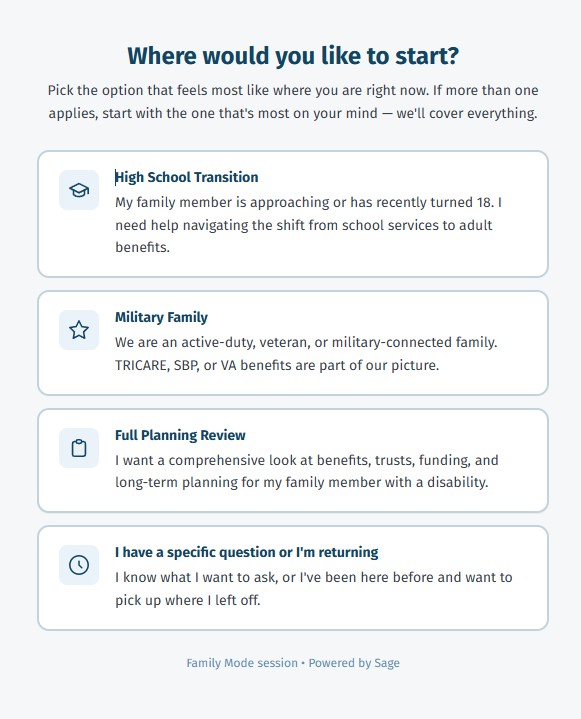
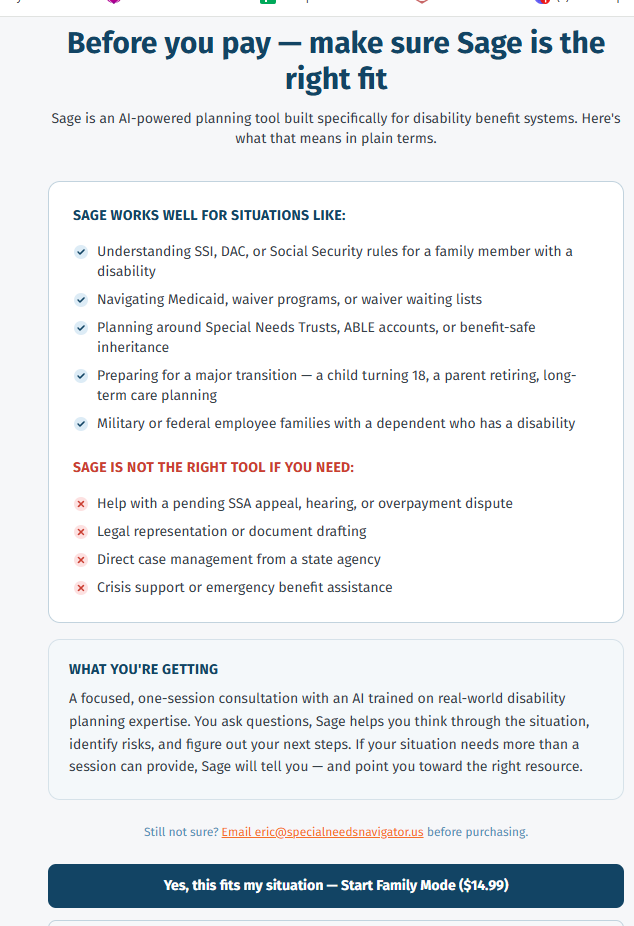
1. Select your mode — Family or Professional. A fit-check screen confirms Sage is the right tool for your situation before you pay.
2. Payment — Processed securely through Stripe before the session opens.
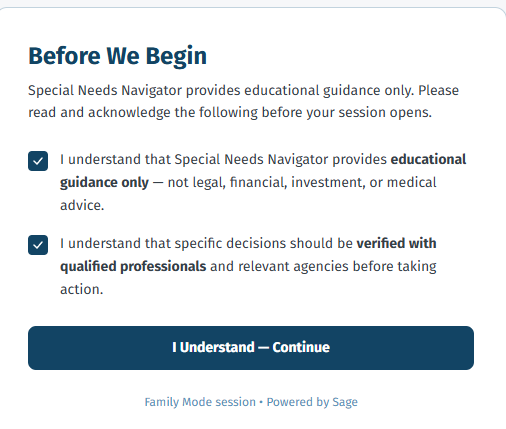
3. Disclaimer gate — Two checkboxes confirming you understand Sage is an educational tool and that you'll verify critical information with the appropriate agencies or professionals.
4. Your session — Start wherever you are. Sage will ask questions to understand your situation before jumping into analysis. A good way to begin: tell Sage about the person you're planning for — not just their diagnosis, but who they are. Then share your biggest concerns.
Heads up on response time: Sage uses live web search to verify current benefit figures from ssa.gov. Some responses may take a few extra seconds. This is intentional — accuracy matters more than speed when benefit rules are involved.
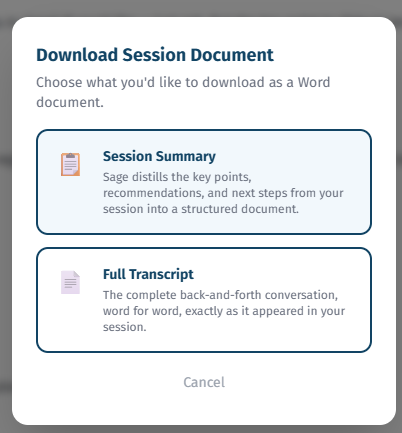
5. Download your summary — Click the Download Summary button in the session header to save a Word document with your case overview, risks identified, recommended next steps, and a Session Restart Prompt for your next session.
No Memory Between Sessions
Sage does not retain information between sessions — every session starts fresh. This protects your privacy.
If you want to continue working on the same situation in a future session, use your Session Restart Prompt. Every downloaded summary includes one. Copy it, paste it as your first message in a new session, and Sage will have full context in seconds.
Tips for Getting the Most Out of Your Session
Start with the person, not the diagnosis. The more context Sage has about who your family member is, the more useful the analysis.
Be specific about your biggest concern. If you're not sure where to start, tell Sage what's keeping you up at night. That's usually the right place to begin.
List what's already in place. Tell Sage which programs and benefits are currently active. This helps focus the conversation on gaps.
Download your summary before you close. Sessions are not saved. Once you close the window, the conversation is gone.
Not Sure What to Ask? Start Here.
Sage will guide you from the moment you select your track. But if you want to arrive with a specific question already in mind, here are eight real prompts — the kinds of situations families and professionals bring to Sage every day. You can type any of these exactly as written, or use them as a starting point and fill in your own details.
Starting from Scratch
If you're new to disability planning and not sure where to begin: My daughter was just diagnosed with autism. She's 6. I don't even know where to start with benefits and planning. Where do I begin?
The Age-18 Transition
One of the highest-stakes moments in disability planning, and the one most parents are least prepared for: My son is turning 18 in eight months. He has an intellectual disability and is on SSI. What do I need to do before his birthday to make sure we don't lose anything?
An Unexpected Inheritance
This comes up constantly, and the window to act is short: My father wants to leave money to my disabled adult son in his will. I've heard that could cut off his SSI and Medicaid. Is that true, and what should we do instead?
Military Families
TRICARE ECHO, Medicaid waivers, and EFMP all interact, and most families only find out how when something goes wrong: We're a military family and my spouse is retiring next year. Our daughter has Down syndrome and has been on TRICARE ECHO. What happens to her benefits when my spouse retires, and what do we need to know about the Survivor Benefit Plan election before retirement paperwork is submitted?
The DAC Benefit - Most Families Miss This
When a parent files for Social Security retirement or disability, a disabled adult child may qualify for a larger, more stable benefit. Most families are never told: I'm 63 and starting to think about retiring. My son has been on SSI his whole adult life. Someone mentioned he might qualify for something through my Social Security record. Is that true?
Trust Is Set Up - Now What?
Having a trust in place is the beginning, not the end: We set up a Special Needs Trust three years ago. Our son just aged out of school services, and we want to understand what the trust can and can't pay for without affecting his SSI.
Disability Planning and Divorce
Divorce with a disabled child involves benefit and planning considerations that go beyond standard family law: My wife and I are separating. We have a child with significant disabilities on SSI and Medicaid. What do we need to think about in the divorce that's different from a typical custody situation?
For Professionals
Financial advisors, attorneys, social workers, and case managers use Sage to work through complex cases before meeting with clients: I'm a financial planner. My clients have a 24-year-old son with autism and a $500,000 life insurance policy. They want to know how to structure everything - trust, ABLE, beneficiary designations. Where do we start?
You don't have to use one of these prompts. If none of them fit your situation, just start talking. Tell Sage who you're planning for, what's already in place, and what's keeping you up at night. That's usually enough to get started.
Ready to start? The planning windows are open right now.
Family session — $14.99 | Professional session — $34.99